
Step 1
Enter your video details
Enter your video title, topic, or main keyword. Use wording that closely matches the actual video.
Start with the real topic.
Type in your video title or keyword and get a complete, search-friendly description you can edit and paste into YouTube. Free, and no account needed
Your generated description will appear here.
Enter a topic above and press Generate.
A YouTube description generator is a tool that writes a complete video description from your title, topic, or keyword. You enter a few details and get a structured description that introduces the topic clearly in the opening lines, with room for your links and hashtags.
It handles the slow part of publishing. Instead of staring at the empty description box after editing for hours, you get a ready draft you can personalize and paste.
It works for regular videos and for shorts.
Have a video waiting to publish? Enter its title above and generate the description.
Create a description, hashtags, and keywords from your video topic.
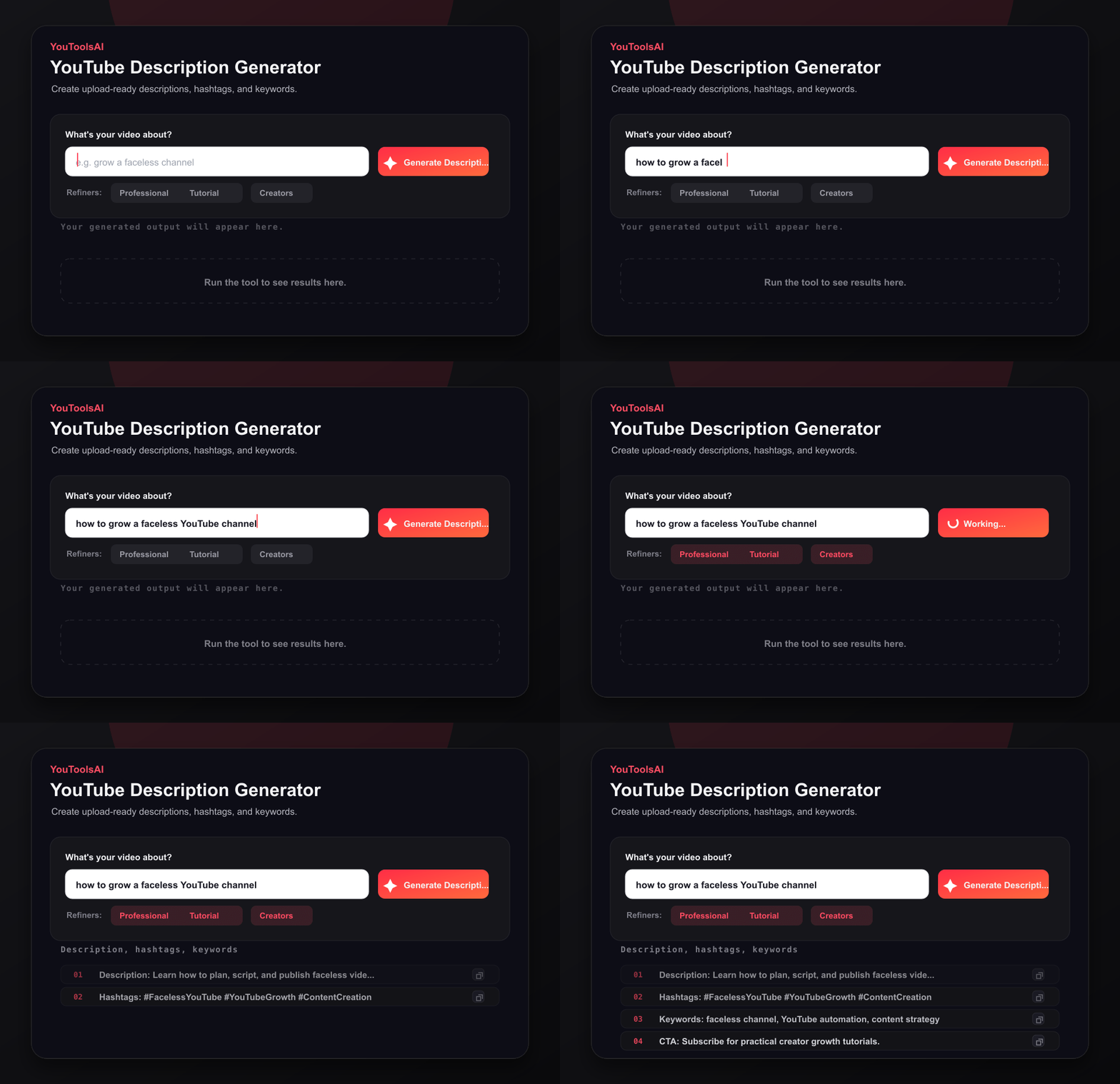
Enter your video title, topic, or main keyword. Use wording that closely matches the actual video.
Start with the real topic.
Click generate. The tool writes a full description that opens with a clear summary of the video.
Get a ready draft.
Review and personalize. Add real links, adjust phrasing, copy the result, and paste it into YouTube.
No signup, no card, nothing to install.
Here's the kind of description the tool can produce.
Input: "how to start a vegetable garden."
Sample output: Learn how to start a vegetable garden from scratch, even in a small space. In this guide we cover picking the right spot, preparing your soil, and choosing easy first crops that are hard to get wrong. Whether you have a backyard or just a balcony, you'll leave with a simple plan you can start this weekend. We also cover the most common beginner mistakes, from overwatering to planting too early, so your first season actually produces food. ⏱ Chapters 00:00 Why most first gardens fail 01:24 Picking your spot 03:10 Preparing the soil 06:45 The five easiest first crops 09:30 Your weekend starter plan 🔗 Links Free garden planner: [your link] Tools I use: [your link] New videos every week. Subscribe so you don't miss the next one. #vegetablegarden #gardeningforbeginners #growyourownfood
Plenty of description tools output one generic paragraph. This one drafts the full structure, from the opening summary through the detail, link, and hashtag sections, so what you paste into YouTube is actually complete.
It's free, there's no account wall, and everything you generate is yours to edit and publish.
For details on how the topics you enter are handled, see the privacy policy linked in the site footer.
Common questions about YouTube Description Generator.
Yes. Enter a title or topic and get a full description at no cost, with no login and no credit card. Generate and copy descriptions for as many videos as you need, so every upload can go out with a clear, complete description.
YouTube doesn't prescribe an ideal length, and the field holds up to 5,000 characters. Use enough detail to explain the video accurately without padding. A long tutorial may deserve several paragraphs, while a simple video or a Short may need only a line or two.
They help YouTube and viewers understand what the video is about. Describe the video clearly in the opening lines, since those are the most visible, and feature one or two topic terms naturally. Titles, thumbnails, and viewer response still do most of the heavy lifting.
For longer videos, yes. Add a list of timestamps starting at 00:00, with at least three entries in ascending order and each chapter at least ten seconds long. Chapters let viewers jump straight to what they want. Short videos don't need them.
Yes. Enter your clip topic and you get a brief description with room for a hashtag or two. Keep Shorts descriptions short and focused, since viewers rarely read more than a line before the next clip starts playing.
Add a small number of directly relevant hashtags when they help categorize the video. YouTube may display up to three near the title, and it warns against excessive or unrelated hashtags, so a few well chosen ones beat a long string every time.
Related tools
This free YouTube title generator turns one keyword into click-worthy, search-friendly titles in seconds. Just type your topic, pick a tone, and choose your favourite.
Open toolTurn any topic into a complete YouTube video script in seconds. Enter your subject, click generate, and get a script with a hook, main points, and a closing call to action - free, with no login.
Open toolGet fresh video ideas for any niche in seconds. Enter your topic, click generate, and pick your next video from a ready-made list - free, no login.
Open toolWrite scroll-stopping video intros in seconds. This free YouTube hook generator turns your video idea into strong opening lines that keep viewers watching.
Open tool